



1

Analyse Metrics
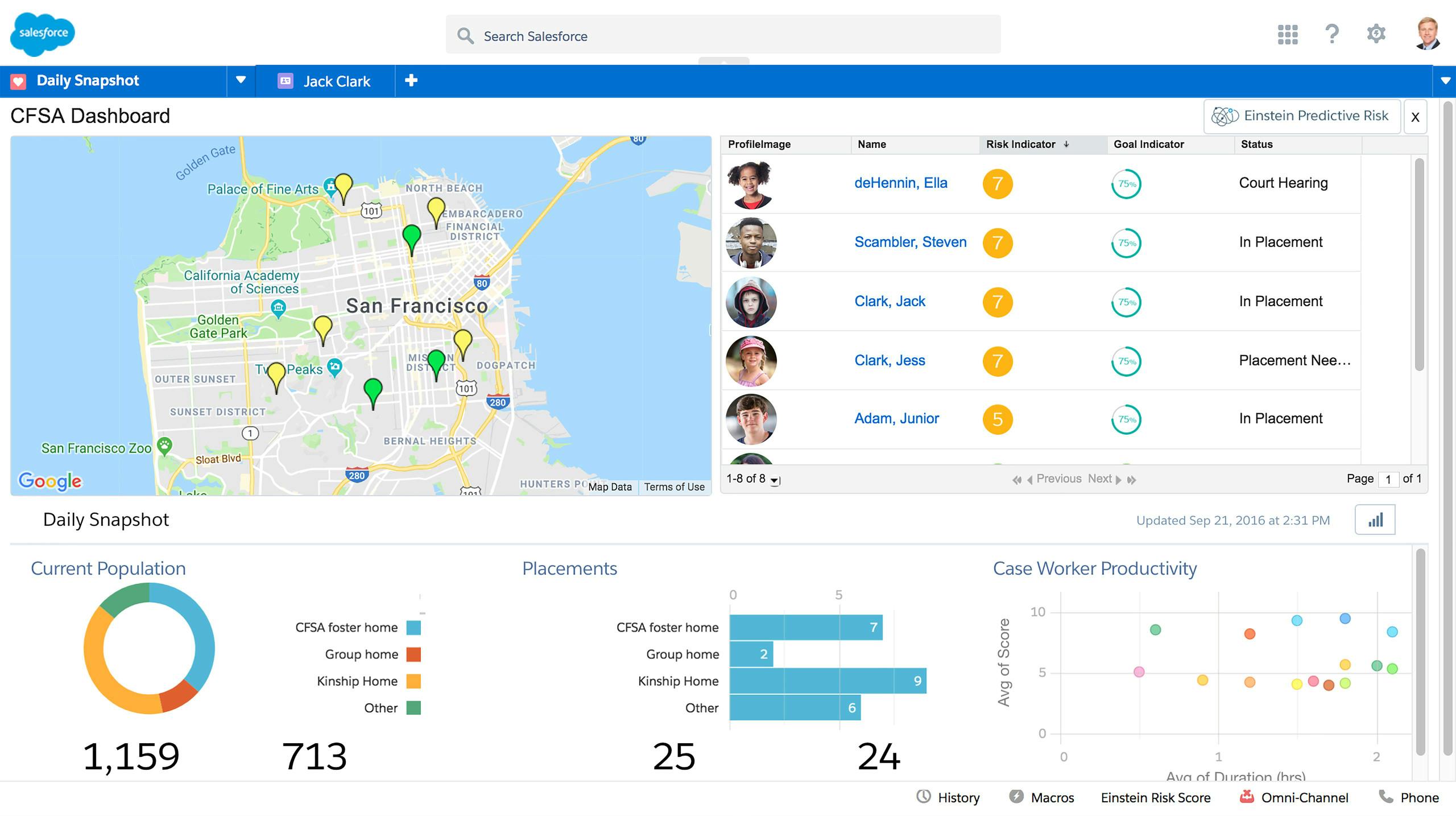
With a daily snapshot view, the supervisor sees Jack's new risk score of 7 and the new map color indicator, which has been updated.
Now the supervisor can continue providing assistance to the rest of the agency's customers.
Manage Cases Efficiently
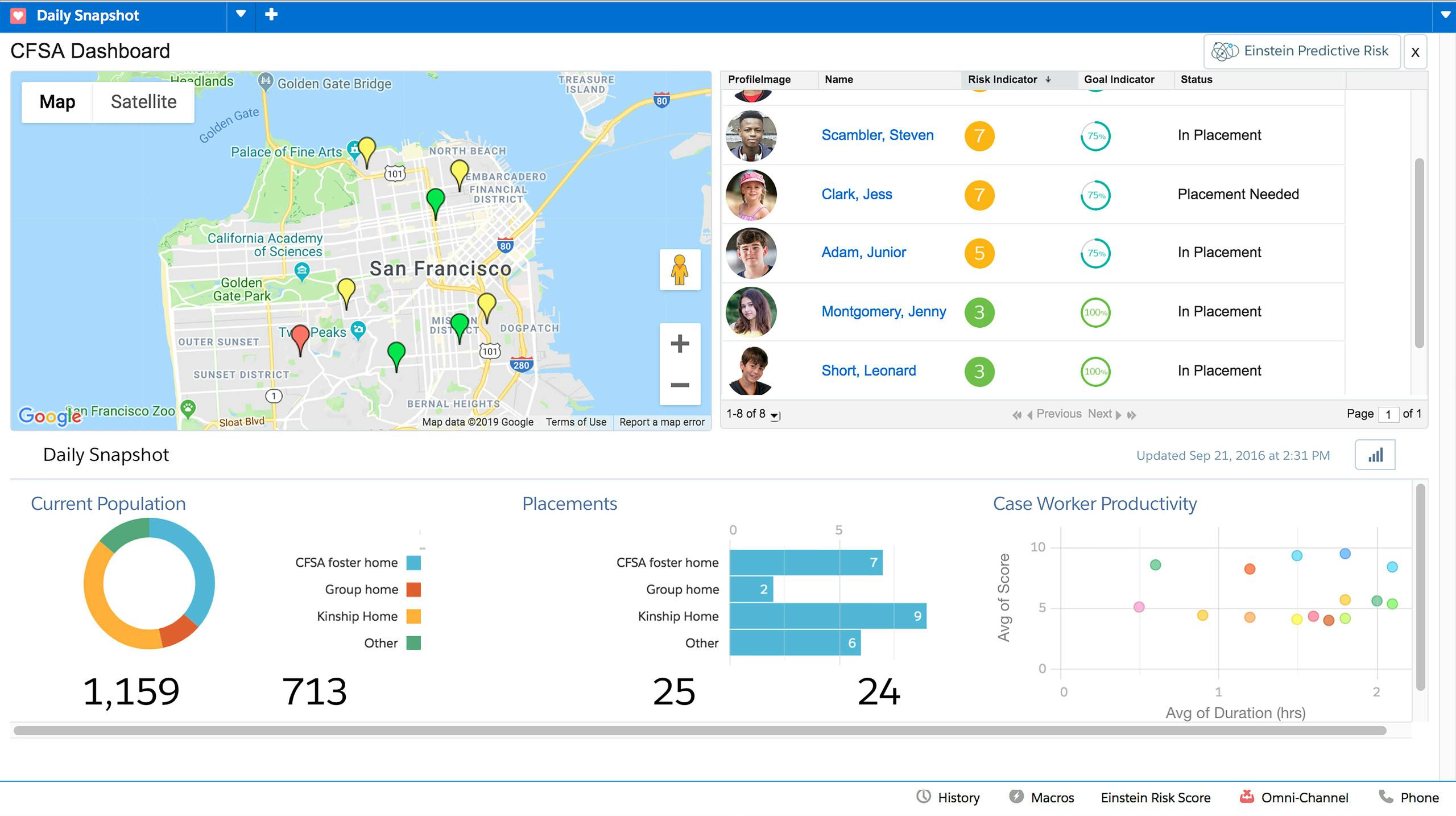
The Supervisor Dashboard gives caseworkers and supervisors a 360 degree view of all youth that are deemed to be high-risk based on a risk score computed by Salesforce's artificial intelligence, Einstein.
Let's run a risk calculation in real time.
Determine Risk
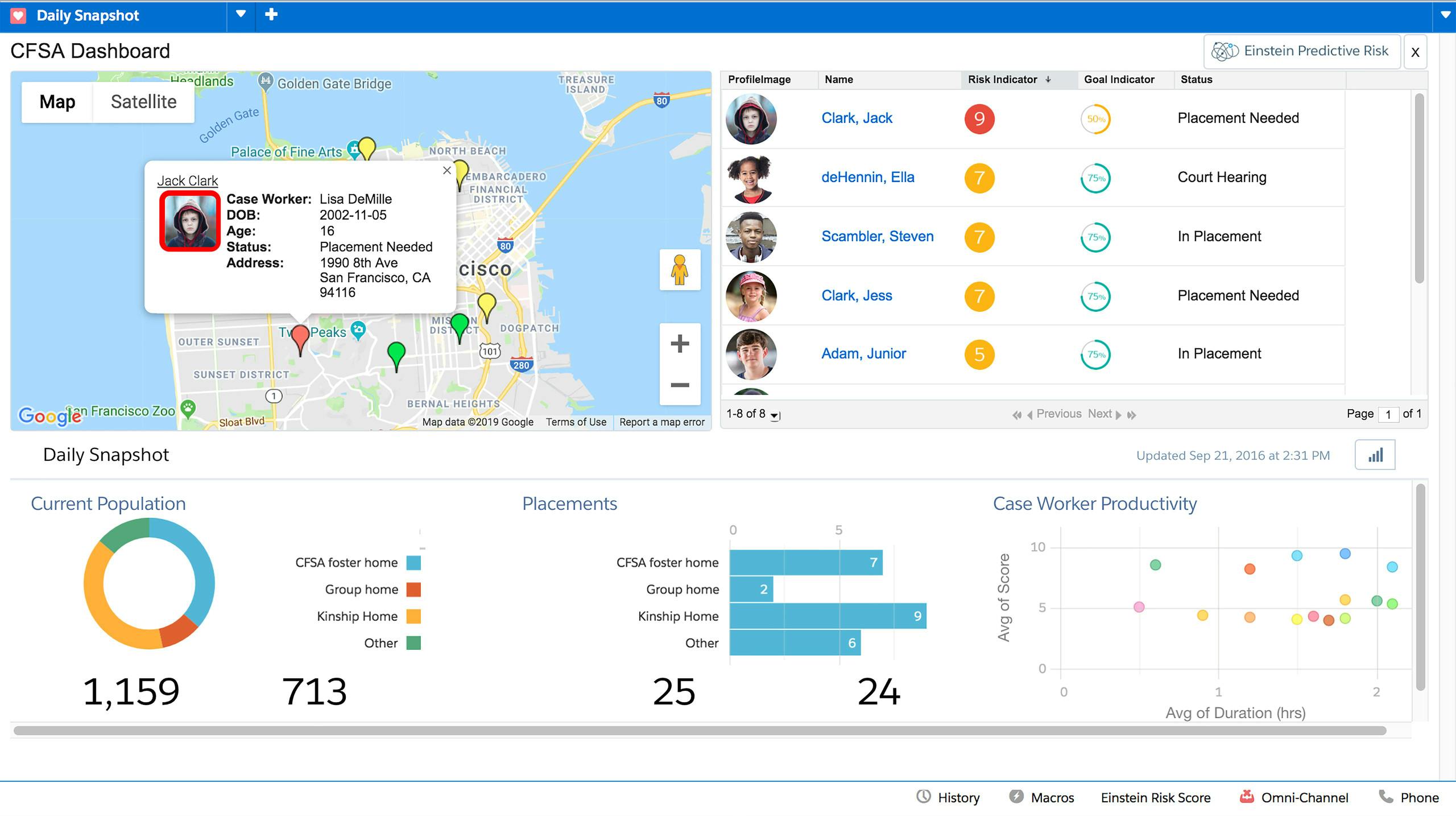
We can get quick details of each child and their location by hovering over icons in the map. We see that Jack Clark has the highest risk score of 9.
The supervisor determines that her case worker needs to visit Jack immediately for an assessment so she clicks on the map icon for Jack to drill into his details.
Get More Detail
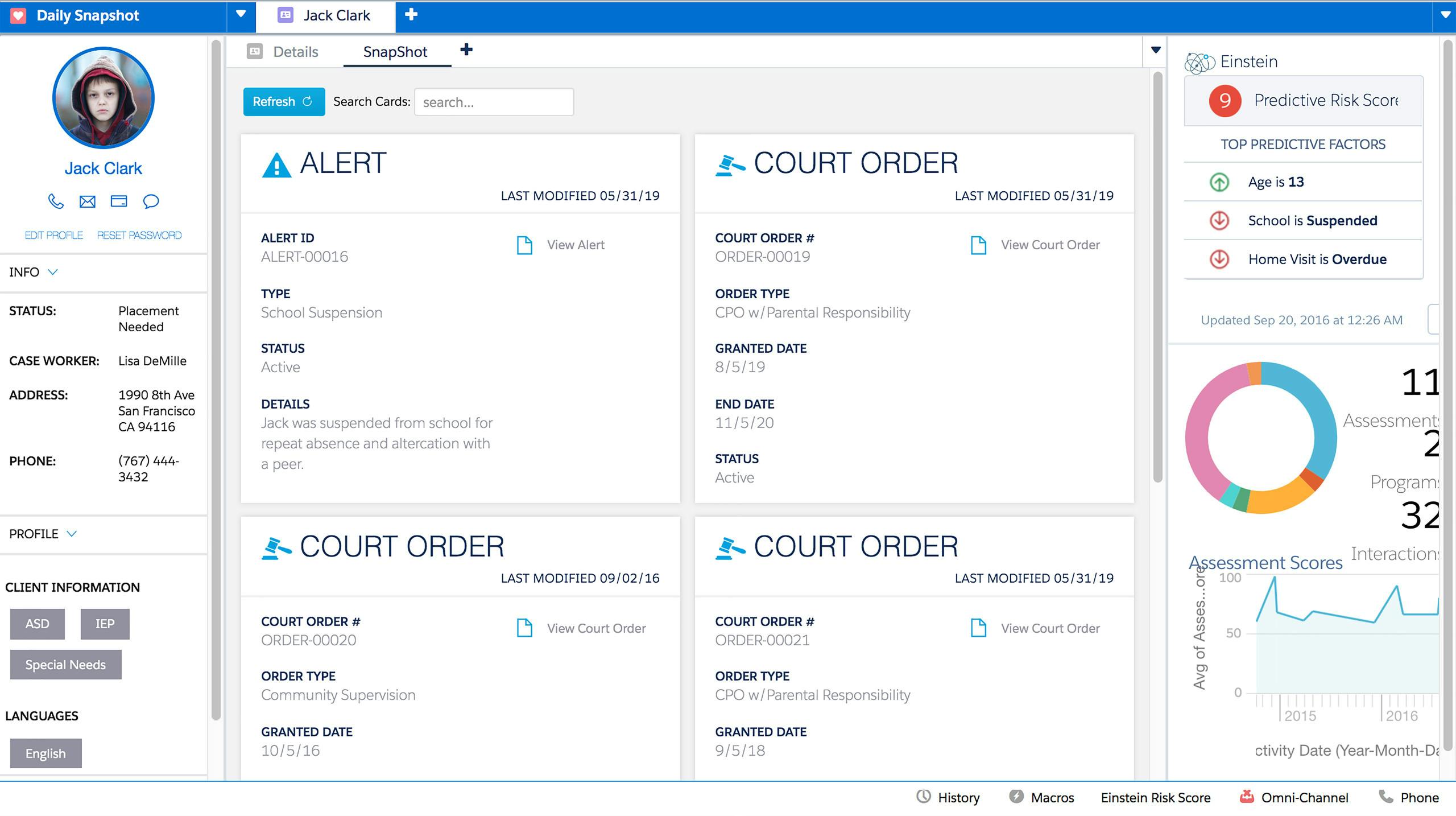
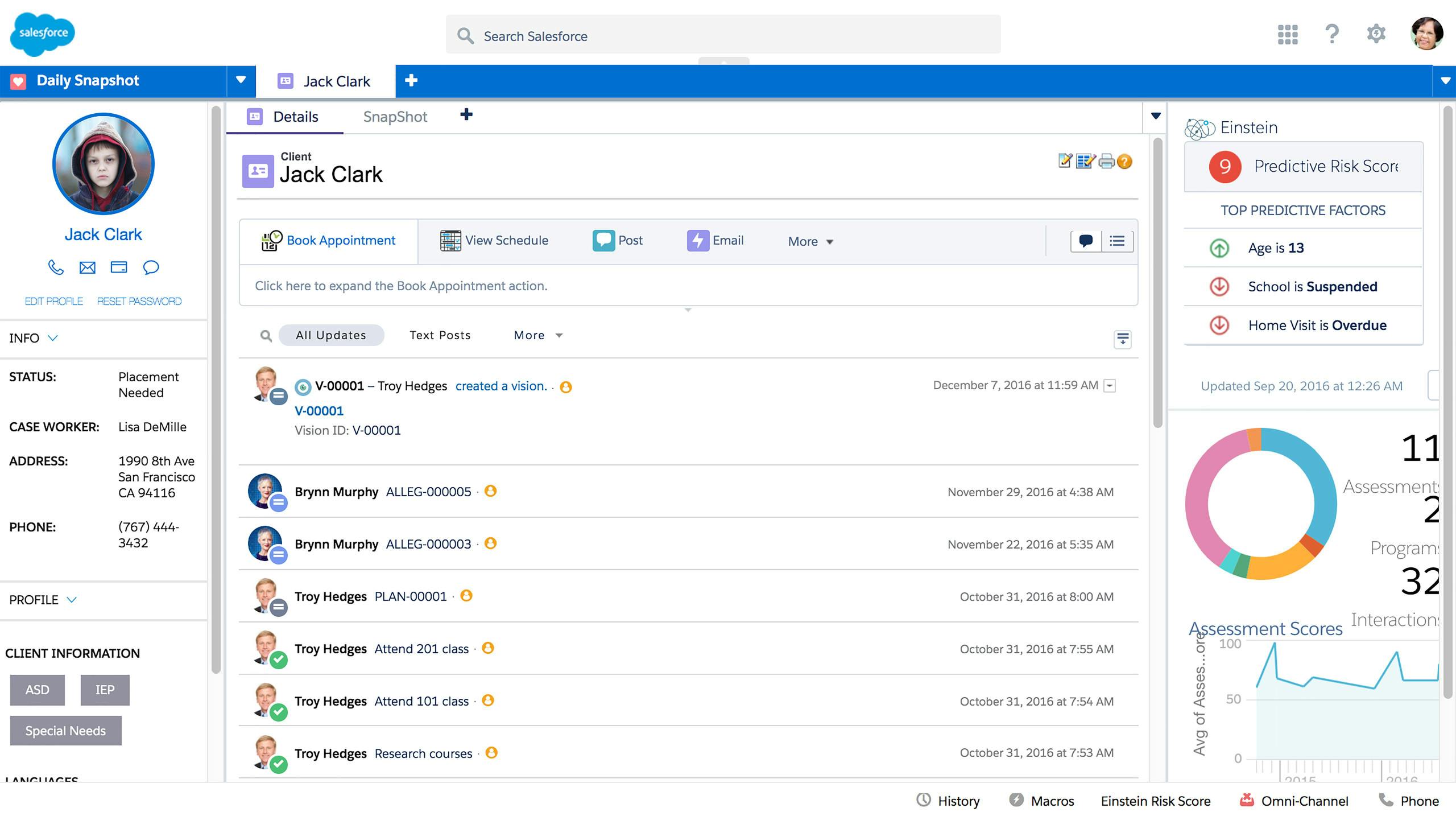
Jack's detail page loads and the screen is broken into three different areas.
1. Summary information on the left.
2. Recent activity in the middle.
3. Risk factors on the right.
View Data
By clicking on the 'Details' sub tab, the agent gets a complete history of everything within Jack's file, from where they can initiate various actions.
Connect with Customers
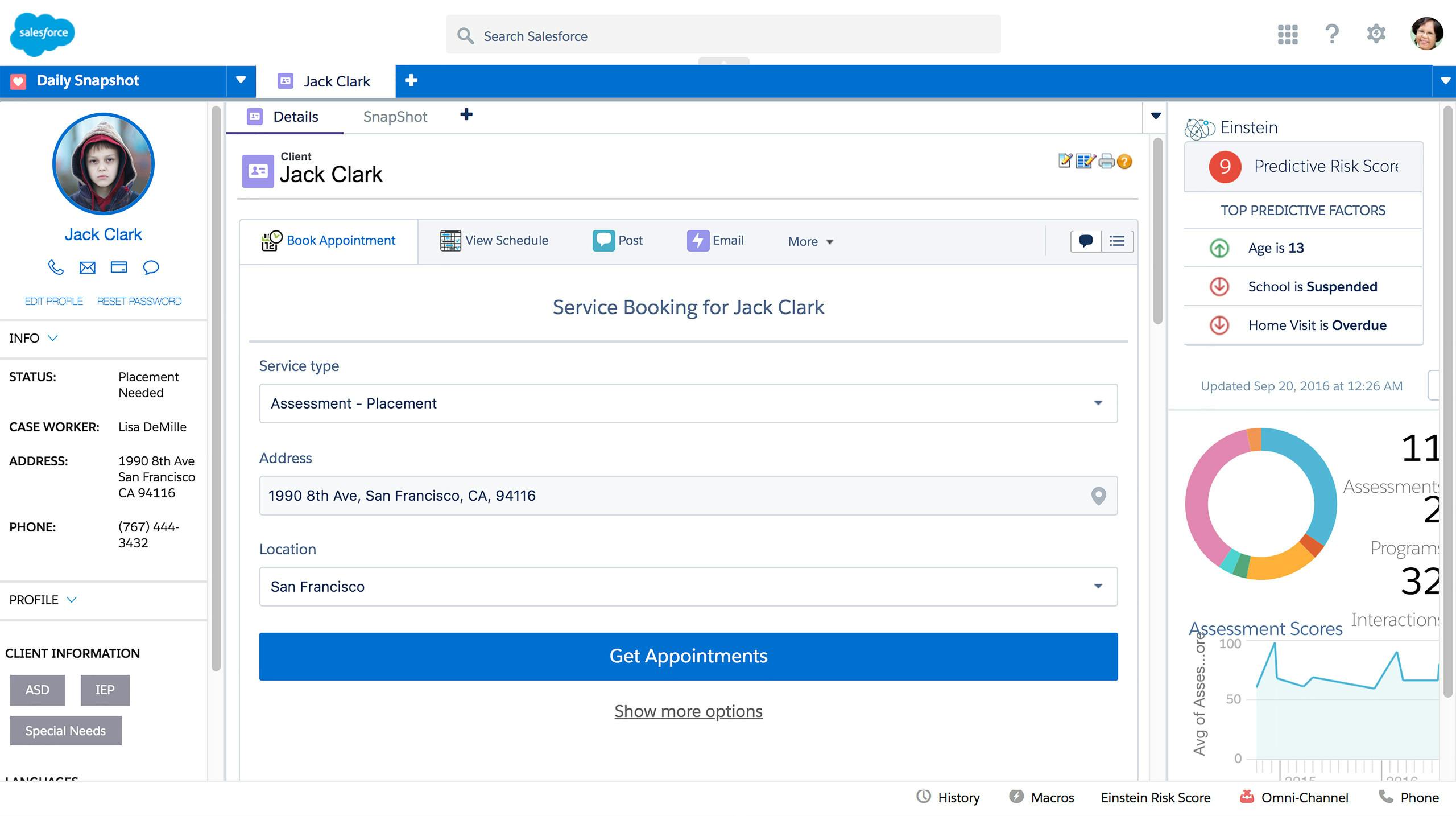
To book a case worker appointment, the supervisor clicks on the Book Appointment button.
This takes us to the booking screen where we can pick the type of service appointment to create.
Confirm Availability
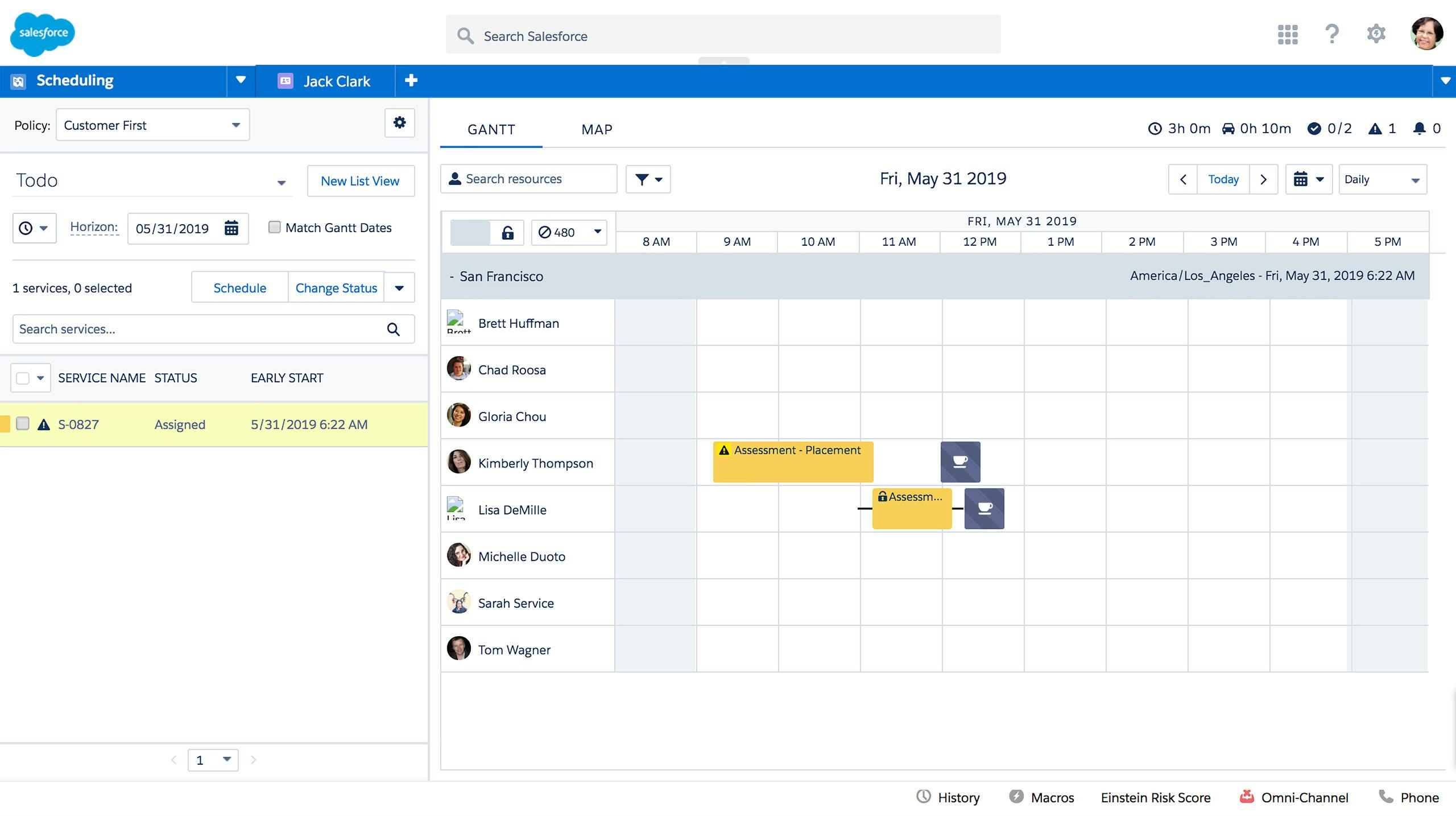
Supervisors can view a daily schedule of all the case workers to find the most appropriate assignment based on skill, location, availability, and more. They can dispatch the case workers when ready.

Give More Context
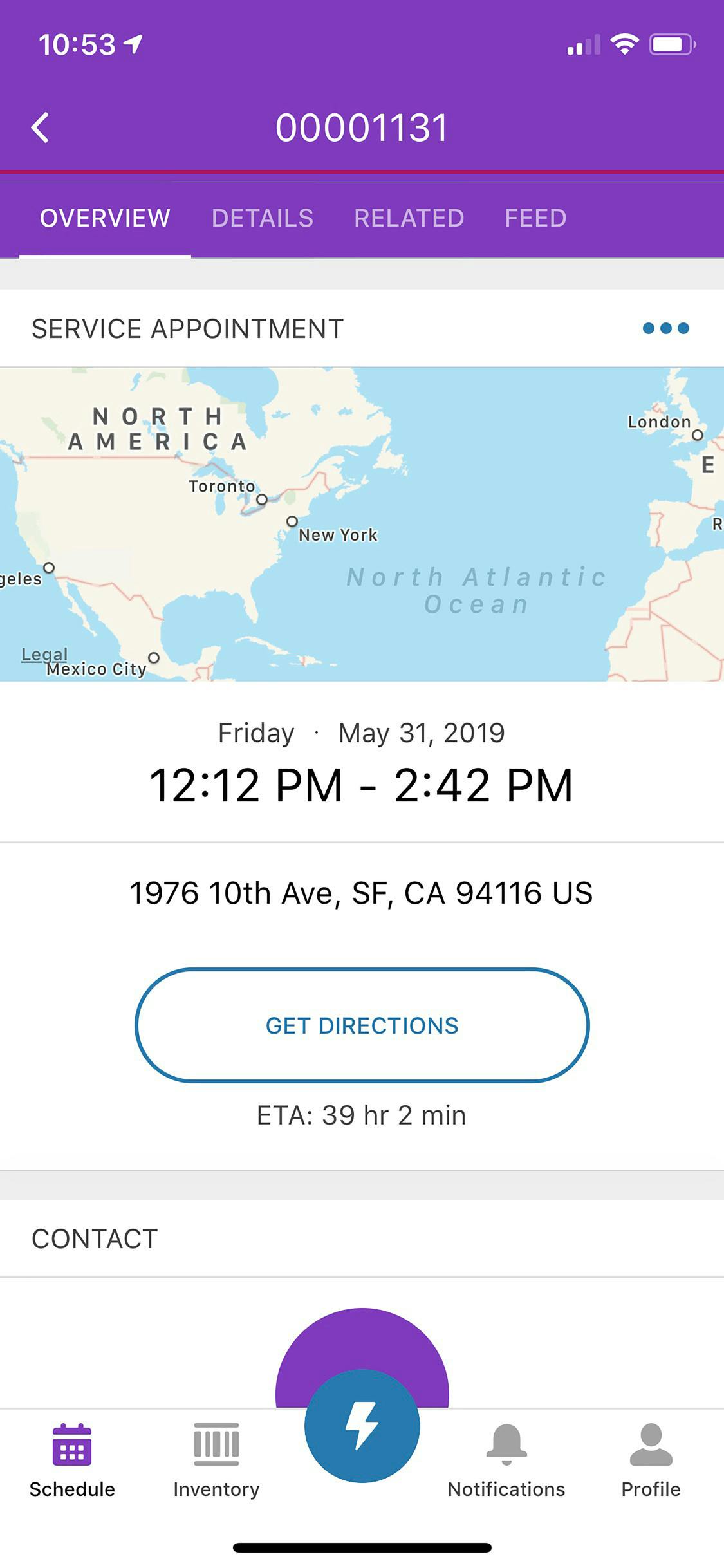
Case workers have access to location information, contact details, and the entire case and client history, all from the palm of their hand.
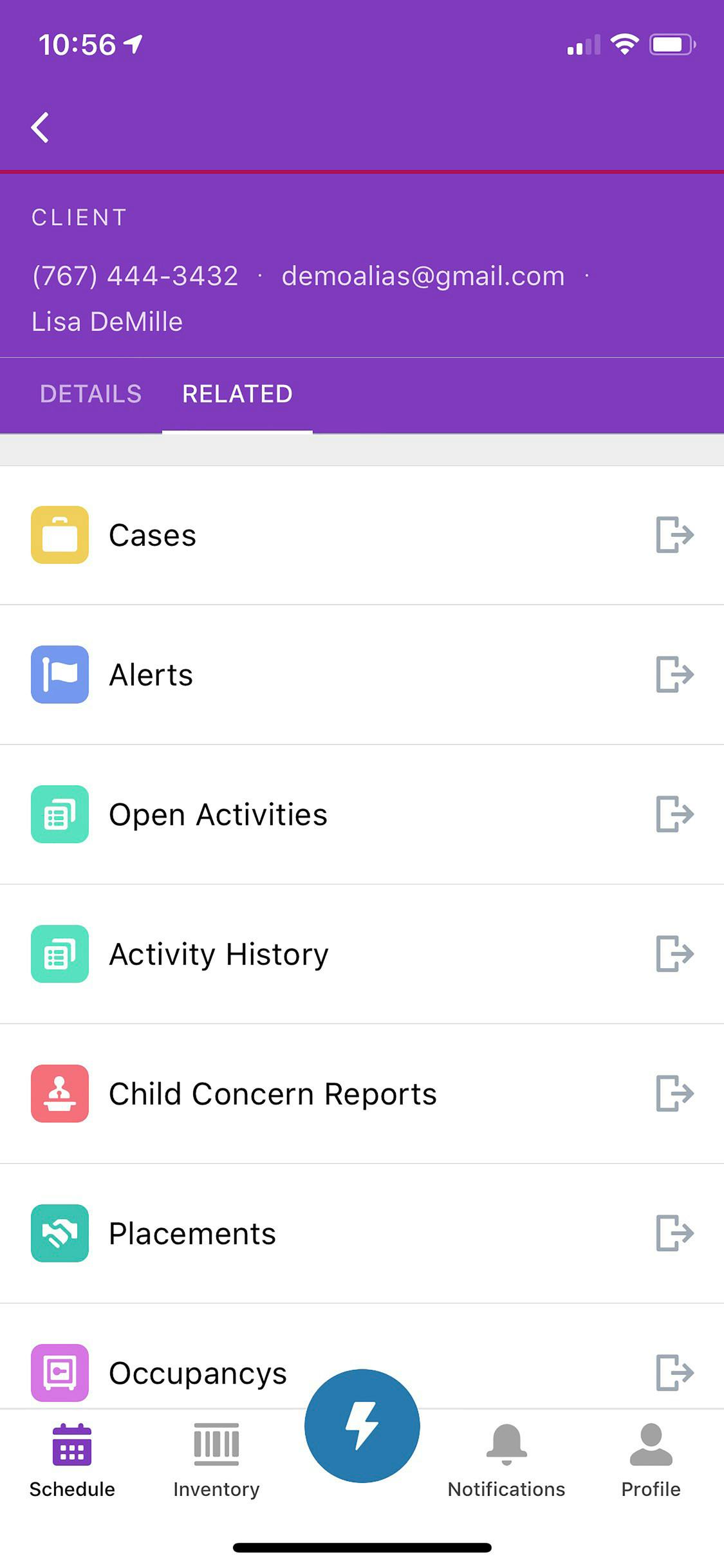
View Case History
Easily view the Case History information so a risk assessment can be conducted as a part of today's appointment.
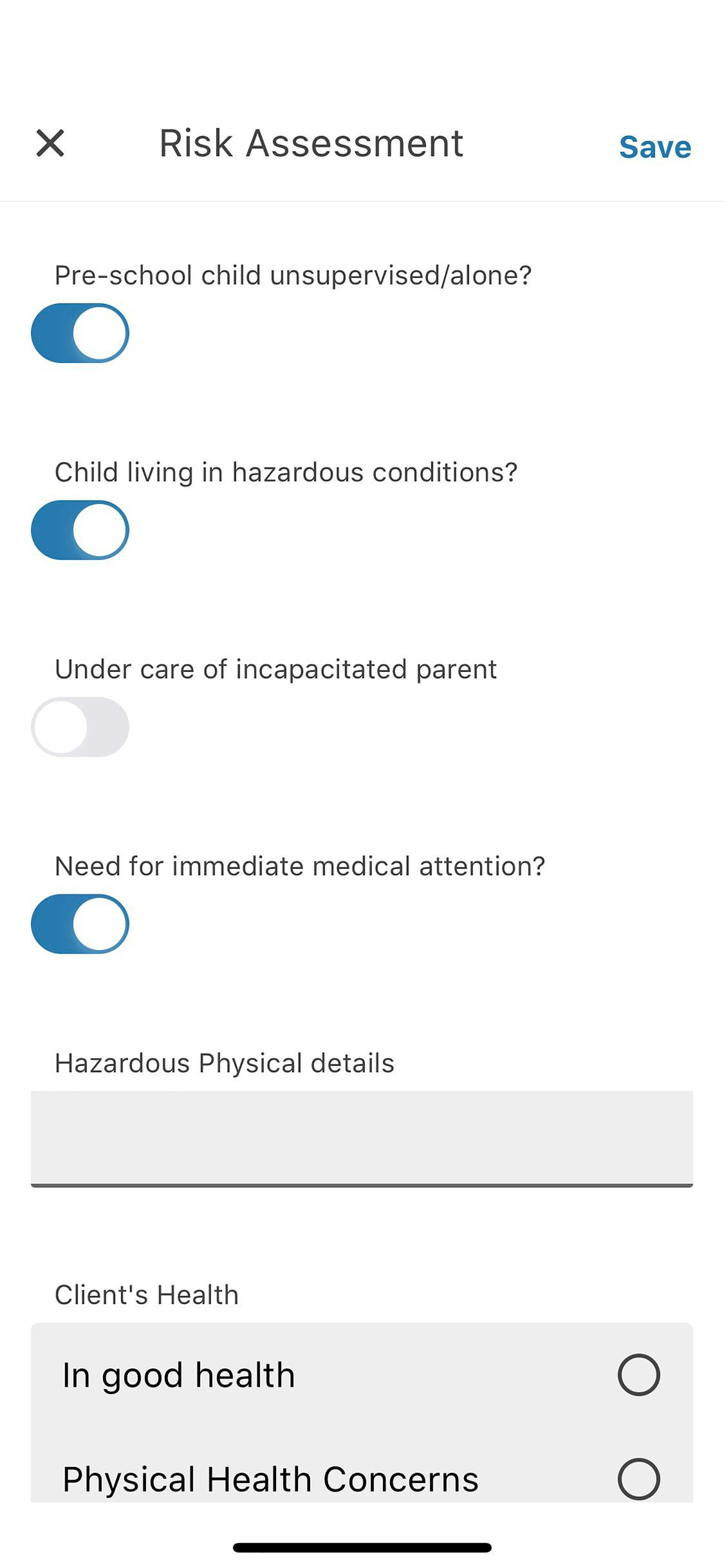
Access Critical Data
The guided Risk Assessment Form allows the case worker to input all of the necessary information and keep all the data in sync with the child welfare back office even when offline.
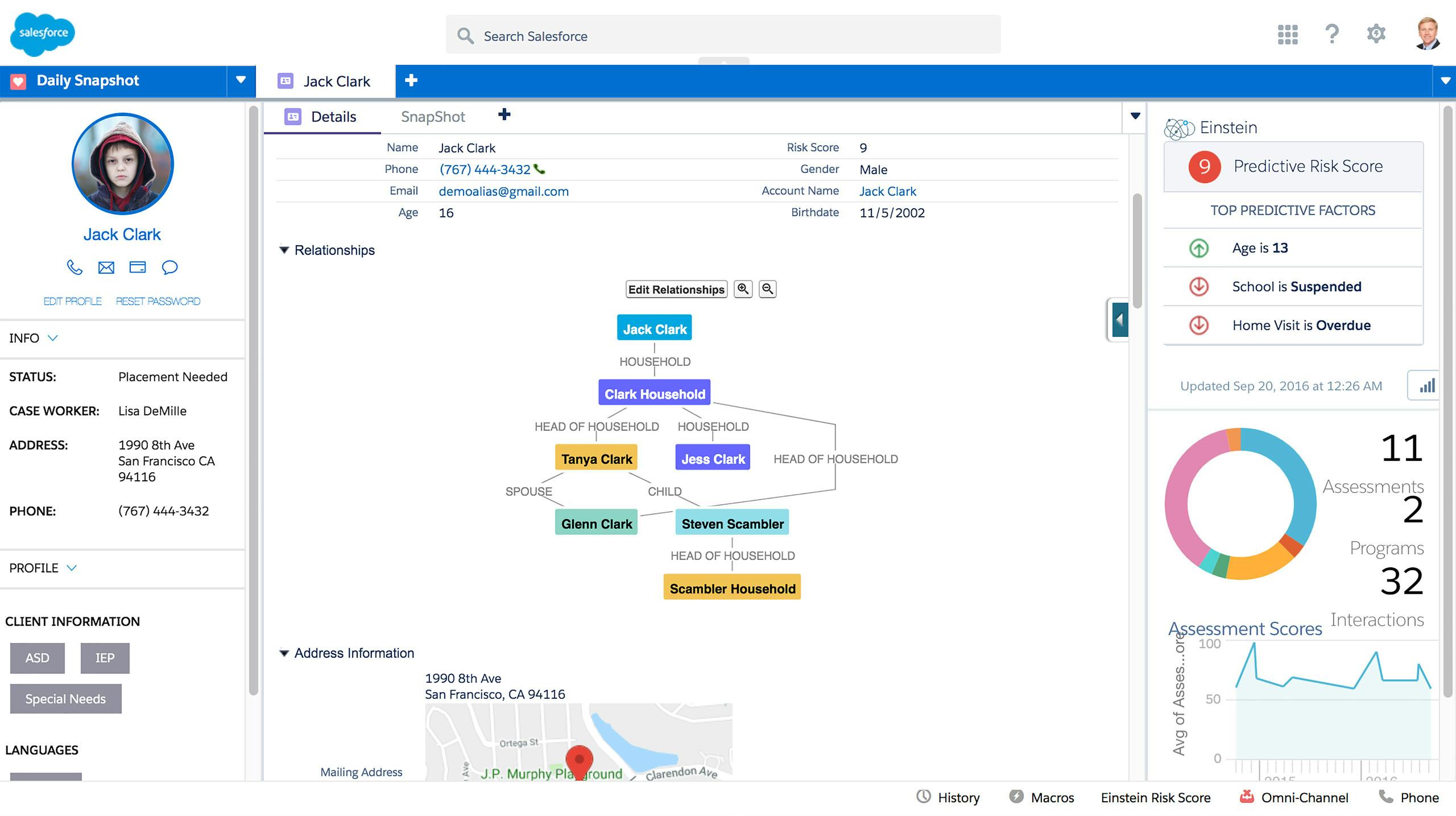
View Record Details
After the risk assessment is completed, the supervisor needs to place Jack into foster care and navigates to his record.
We can see that Jack's status now shows Placement Needed and features a family/ contact relationship graph for the supervisor to quickly understand Jack's situation.
To find a foster replacement, the supervisor simply clicks the Client Placement button.
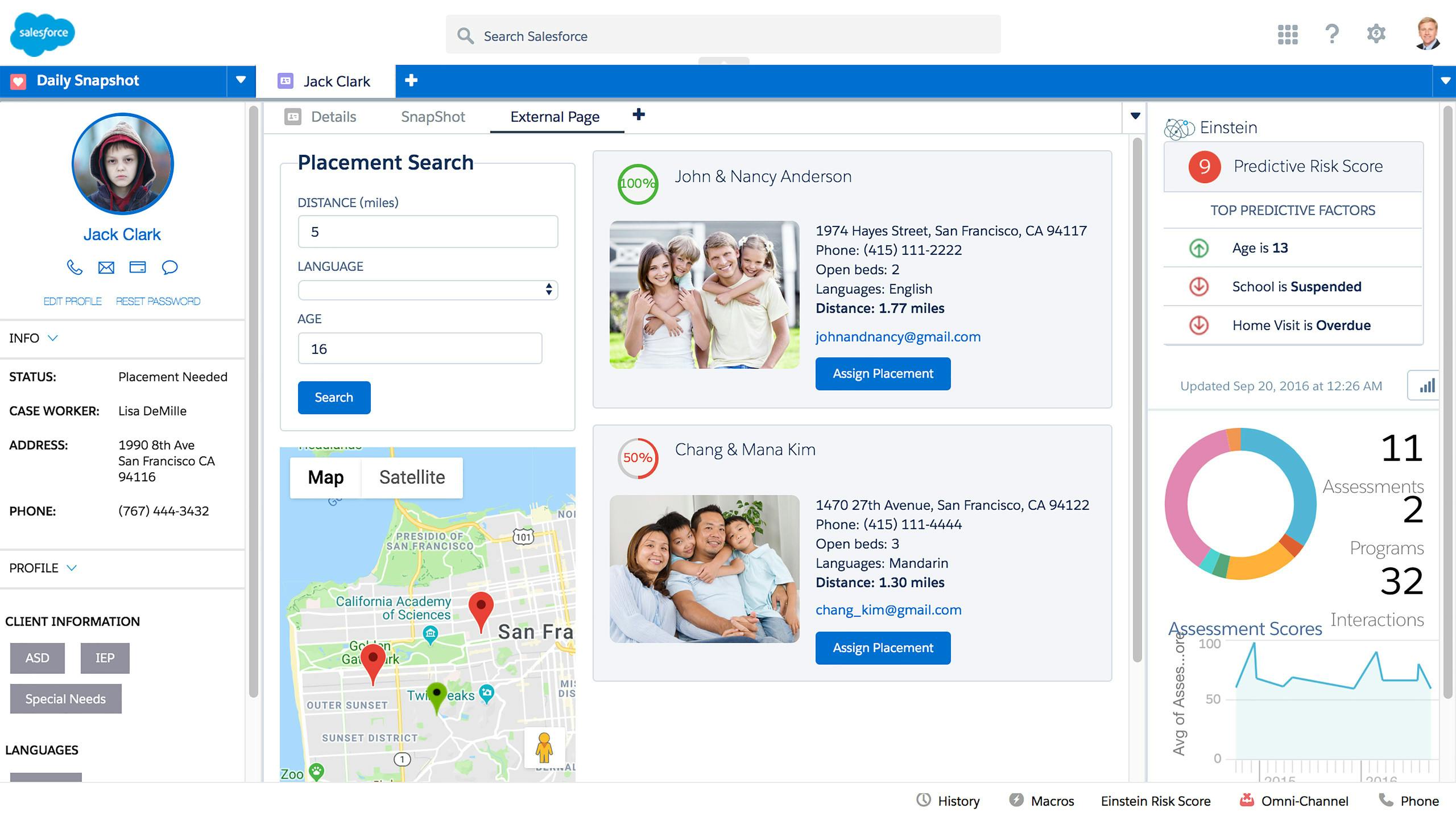
Make an Impact
Based on Jack's various attributes and those of the foster families, the screen presents a list of potential matches.
The supervisor sees a 100% match for the Anderson family. This action creates the placement record and associates it to Jack's record.
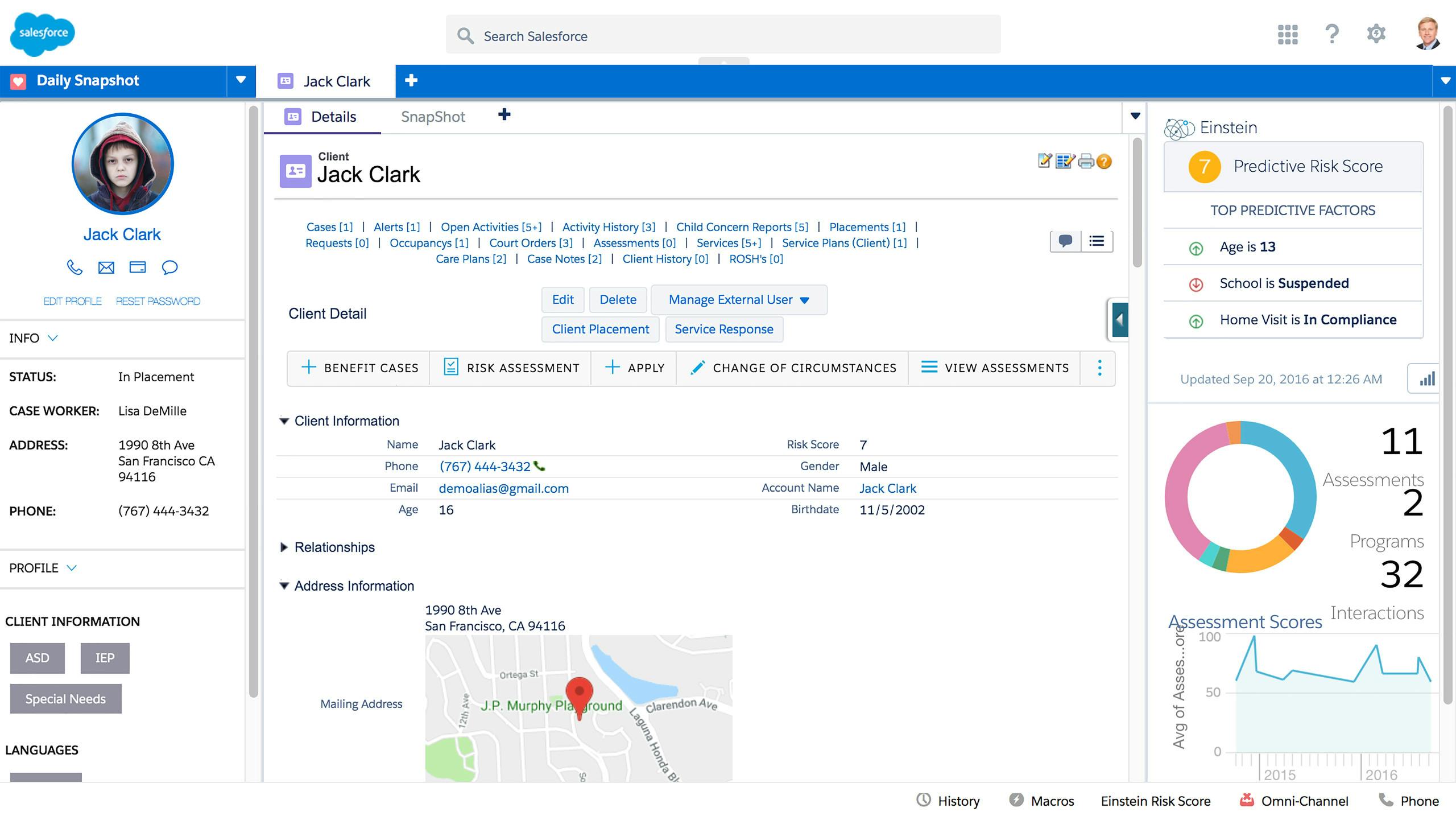
Lower Risk
The supervisor is automatically taken back to Jack's record. We can now see that Jack's status is 'In Placement' and his risk score was lowered to a7.
Analyse Metrics
With a daily snapshot view, the supervisor sees Jack's new risk score of 7 and the new map color indicator, which has been updated.
Now the supervisor can continue providing assistance to the rest of the agency's customers.
Manage Cases Efficiently
The Supervisor Dashboard gives caseworkers and supervisors a 360 degree view of all youth that are deemed to be high-risk based on a risk score computed by Salesforce's artificial intelligence, Einstein.
Let's run a risk calculation in real time.
Determine Risk
We can get quick details of each child and their location by hovering over icons in the map. We see that Jack Clark has the highest risk score of 9.
The supervisor determines that her case worker needs to visit Jack immediately for an assessment so she clicks on the map icon for Jack to drill into his details.
Get More Detail
Jack's detail page loads and the screen is broken into three different areas.
1. Summary information on the left.
2. Recent activity in the middle.
3. Risk factors on the right.
View Data
By clicking on the 'Details' sub tab, the agent gets a complete history of everything within Jack's file, from where they can initiate various actions.
Connect with Customers
To book a case worker appointment, the supervisor clicks on the Book Appointment button.
This takes us to the booking screen where we can pick the type of service appointment to create.
Confirm Availability
Supervisors can view a daily schedule of all the case workers to find the most appropriate assignment based on skill, location, availability, and more. They can dispatch the case workers when ready.
Give More Context
Case workers have access to location information, contact details, and the entire case and client history, all from the palm of their hand.
View Case History
Easily view the Case History information so a risk assessment can be conducted as a part of today's appointment.
Access Critical Data
The guided Risk Assessment Form allows the case worker to input all of the necessary information and keep all the data in sync with the child welfare back office even when offline.
View Record Details
After the risk assessment is completed, the supervisor needs to place Jack into foster care and navigates to his record.
We can see that Jack's status now shows Placement Needed and features a family/ contact relationship graph for the supervisor to quickly understand Jack's situation.
To find a foster replacement, the supervisor simply clicks the Client Placement button.
Make an Impact
Based on Jack's various attributes and those of the foster families, the screen presents a list of potential matches.
The supervisor sees a 100% match for the Anderson family. This action creates the placement record and associates it to Jack's record.
Lower Risk
The supervisor is automatically taken back to Jack's record. We can now see that Jack's status is 'In Placement' and his risk score was lowered to a7.
Analyse Metrics
With a daily snapshot view, the supervisor sees Jack's new risk score of 7 and the new map color indicator, which has been updated.
Now the supervisor can continue providing assistance to the rest of the agency's customers.
